• Feed RSS

Create Your Google+ Fan Page for Your Blogger Blog

https://lh3.googleusercontent.com/-alI6kmAT36g/Tz353H-lbII/AAAAAAAAA4Y/bbmgFZugXQY/s1600/Google-Blogger.jpg

Google+(Plus) Launches Pages For Google +(Plus). A Businesses solution for Promoting products and sharing news, photos and events, to your customers and Fans. it is very similar to the Facebook Fan Pages. in this Article i show you how to Create and Promote a Fan Page for your Blogger Blog.

You Must Have a Google+ Account to create a G+ Fan Page

  1. Go to THIS PAGE and Click on Product or Brand
    How to Create Google+ (Plus) Fan Page for Your Blog
  2. Enter the Blog Title and URL as Follows

    How to Create Google+ (Plus) Fan Page for Your Blog

  3. Select the Category as WebSite

    How to Create Google+ (Plus) Fan Page for Your Blog

  4. Tick the Agree Page Terms check-box and Click on Create Button.

    How to Create Google+ (Plus) Fan Page for Your Blog

  5. Enter the Tagline of the Blog and Upload a Profile photo (if any!)

    How to Create Google+ (Plus) Fan Page for Your Blog

  6. Your G+ page is almost created. if you wish to share your page with your Google+ Circles, then click the Share on Google+ button and Finally Click the Finish button

    How to Create Google+ (Plus) Fan Page for Your Blog

Adding Official Google+(Plus) Page Badge

To Grow your fans and Audience, add the official Google+ page badge to your blog.

  1. After finishing creating page, you will see the page like below. click the get the Badge link.

    How to Create Google+ (Plus) Fan Page for Your Blog

  2. You will redirect to this page. and your Google + page ID is automatically added.
  3. Choose a Style of Badge and Language (Leave the Advanced options to Default).
  4. Here, you will get Two sections of Code.(Code1 and Code2).

    How to Create Google+ (Plus) Fan Page for Your Blog

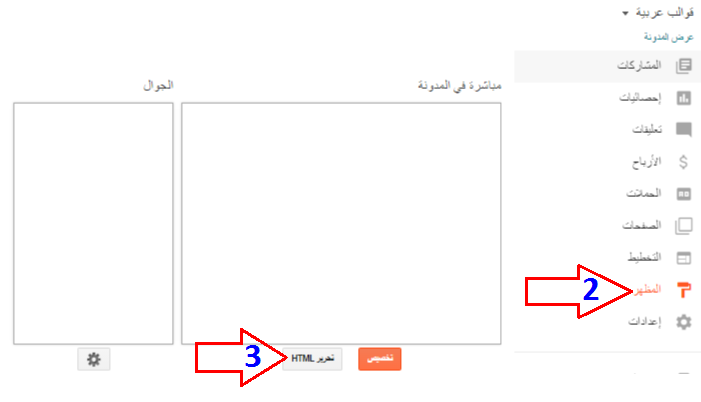
  5. Go to Blogger Dashboard > Design > Edit HTML
  6. Search for the tag
  7. Add the Code1 section before tag and Save the Template
  8. Add the Code2 section in HTML/JavaScript gadget or place where you want the badge to be appear.

That’s it!. Please leave your comments.

Solving / Fixing The Undefined Date For blogger Time Stamp.

How To Fix This Error

To fix the time stamp error in blogger post you’ll need to do the following steps.
Go to your blogger account. And navigate to Settings >> Formating >> and Change the values to the following values.


Then click Save Template And you are ready to go.

101 Tips On Search Engine Optimization – Free Ebook Download

It covers the follow topics in detail, quite useful if you are new to Search Engine Optimization.

Free Ebook Download

  • Tips on creating killer Title Tag
  • Optimizing website body text
  • Meta tags optimization
  • Tips on spider friendly navigation
  • Tips on building link popularity
  • Online Web page analyzer
  • Search engines and directories links
  • General tips
  • AND MORE…

Some might be outdated and some tips are still quite useful. But the fact is SEO is always evolving. This eBook particularly covers more than 100 Useful tips for SEO. There are also certain tools mentioned by the author to analyze your page for additional optimizing ideas.

It is a free SEO eBook so I thought this might come in handy for you. These are the following SEO topics covered in this free eBook:

1) Introduction
2) Title Tag
3) The Main Body Text
4) Meta Tags
5) Spider Friendly Navigation
6) Increase Link Popularity
7) General Tips
8 ) Things To Avoid
9) Analyze Your Web Page
10) Search Engine Submission
11) Conclusion

seo ebook

This free eBook is being given out free by: http://www.perfect-optimization.com/website-optimization-ebook.htm

You can download directly from my server for your convenience. Download The Free Ebook: Seo Optimization Tips

VideoScene Blogger Template 3 columns

VideoScene Blogger Template

Template name : VideoScene


Template type : 2 Sidebar, 3 column, Adapted from WordPress, Black, Elegant, Featured Section, Fixed width, Header Banner, Left Sidebar, Magazine, Pbtemplates, Right Sidebar, Slider, Top Navigation Bar, Web 2.0, Yellow, Video, Games

Release date : October 6, 2011


GamesZone Blogger Template 2 columns

GamesZone Blogger Template

Template name : GamesZone


Template type : 1 Sidebar, 2 column, 3 Column footer, Adapted from WordPress, Black, Elegant, Featured Section, Fixed width, Grey, Header Banner, Magazine, Orange, Premium, Right Sidebar, Slider, Tabbed widget, Top Navigation Bar, Web 2.0, Yellow, Games

Release date : October 31, 2011


eTravel Blogger Template 2 columns

eTravel Blogger Template

Template name : eTravel


Template type : 1 Sidebar, 2 column, Adapted from WordPress, Featured Section, Fixed width, Header Banner, Magazine, Right Sidebar, Slider, Top Navigation Bar, Web 2.0, White, Travel

Release date : November 1, 2011


Replace Home and Posts Links by images in Blogger,

Navigation Links in Blogger are visible as text links usually at the bottom of each page. It is always good to have images as links for navigation, simple text links usually do not attract attention but image links accentuate the navigation links.
This hack will show that just by uploading the images and replacing some code in your template, your image navigation links will be up and running.

The new navigation links will look like this:

imag navigation links Replace Home and Posts Links by images in Blogger

You can have images other than these for home and post links(newer and older).

Here is a simple hack to replace text in navigation links to images:

1. Go to Layout->Edit Html
2. Download Full Template (This is to backup your template)
3. Check the Expand Widget Templates

Older Posts

Search for this code

<data:olderPageTitle/> (For Older Posts)

it will look something like this

<a class=�blog-pager-older-link� expr:href=�data:olderPageUrl� expr:id=�data:widget.instanceId + &quot;_blog-pager-older-link&quot;� expr:title=�data:olderPageTitle�><data:olderPageTitle/></a>

Now replace this code with the code below

<img src=�http://3.bp.blogspot.com/_ACUdDpwsnW0/SdZYD2F7-AI/AAAAAAAAANA/Gam8-_qe7U4/s400/imag-navigation-links.png� style=�border:none; background:#FFFFFF;�/>

Newer Posts

search for this code

<data:newerPageTitle/> (For Newer Posts)

Replace it by the code below

<img src=�http://3.bp.blogspot.com/_ACUdDpwsnW0/SdZYD2F7-AI/AAAAAAAAANA/Gam8-_qe7U4/s400/imag-navigation-links.png� style=�border:none; background:#FFFFFF;�/>

Home Page

For home page you have to replace the codes twice.

Search for this code

<data:homeMsg/> (For Home Page)

Replace it by the code below

<img src=�http://3.bp.blogspot.com/_ACUdDpwsnW0/SdZYD2F7-AI/AAAAAAAAANA/Gam8-_qe7U4/s400/imag-navigation-links.png� style=�border:none; background:#FFFFFF;�/>

4. Save the Template

subscribe to my feed

Enter your email address: